Orders Management
Manage and track all your customer orders from a single interface.
Orders List
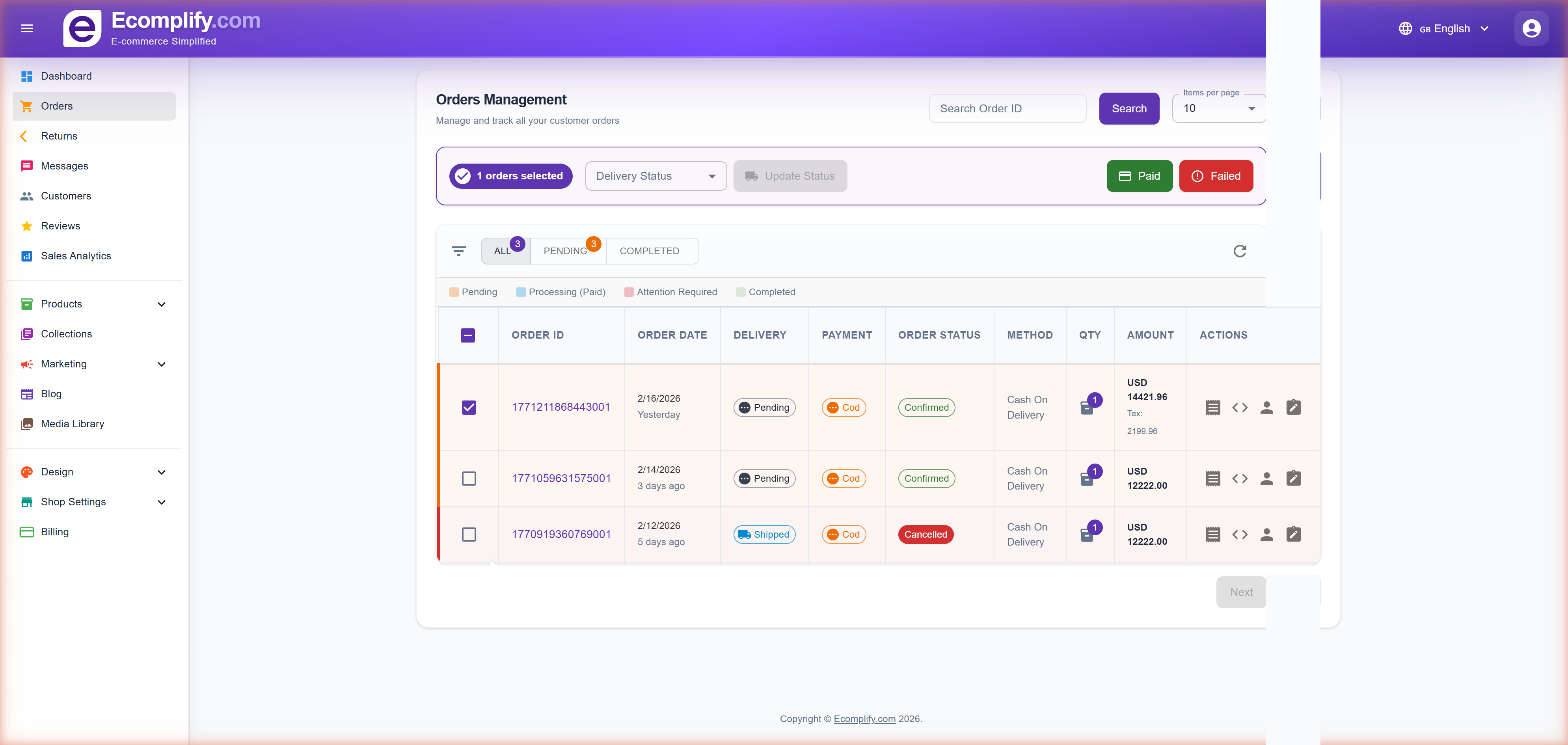
The Orders page displays all orders with key information at a glance.
Order Information
Each order row shows:
- Order ID - Unique identifier for the order
- Order Date - When the order was placed
- Delivery Status - Pending, Shipped, Out for Delivery, Delivered, or Cancelled
- Payment Method - COD, Stripe, Razorpay, etc.
- Order Status - Confirmed, Processing, Completed
- Payment Method - Cash on Delivery, Stripe, Razorpay
- Quantity - Number of items
- Amount - Total order value with tax breakdown
Filtering Orders
Use the tabs at the top to filter orders:
- All - View all orders
- Pending - Orders awaiting processing
- Completed - Fulfilled orders
The color-coded legend helps identify order states:
- Pending (yellow)
- Processing/Paid (blue)
- Attention Required (orange)
- Completed (green)
Bulk Actions
Select multiple orders using the checkboxes to:
- Update delivery status in bulk
- Filter by Paid or Failed status
Order Details
Click on any order to view its full details.
Status Management
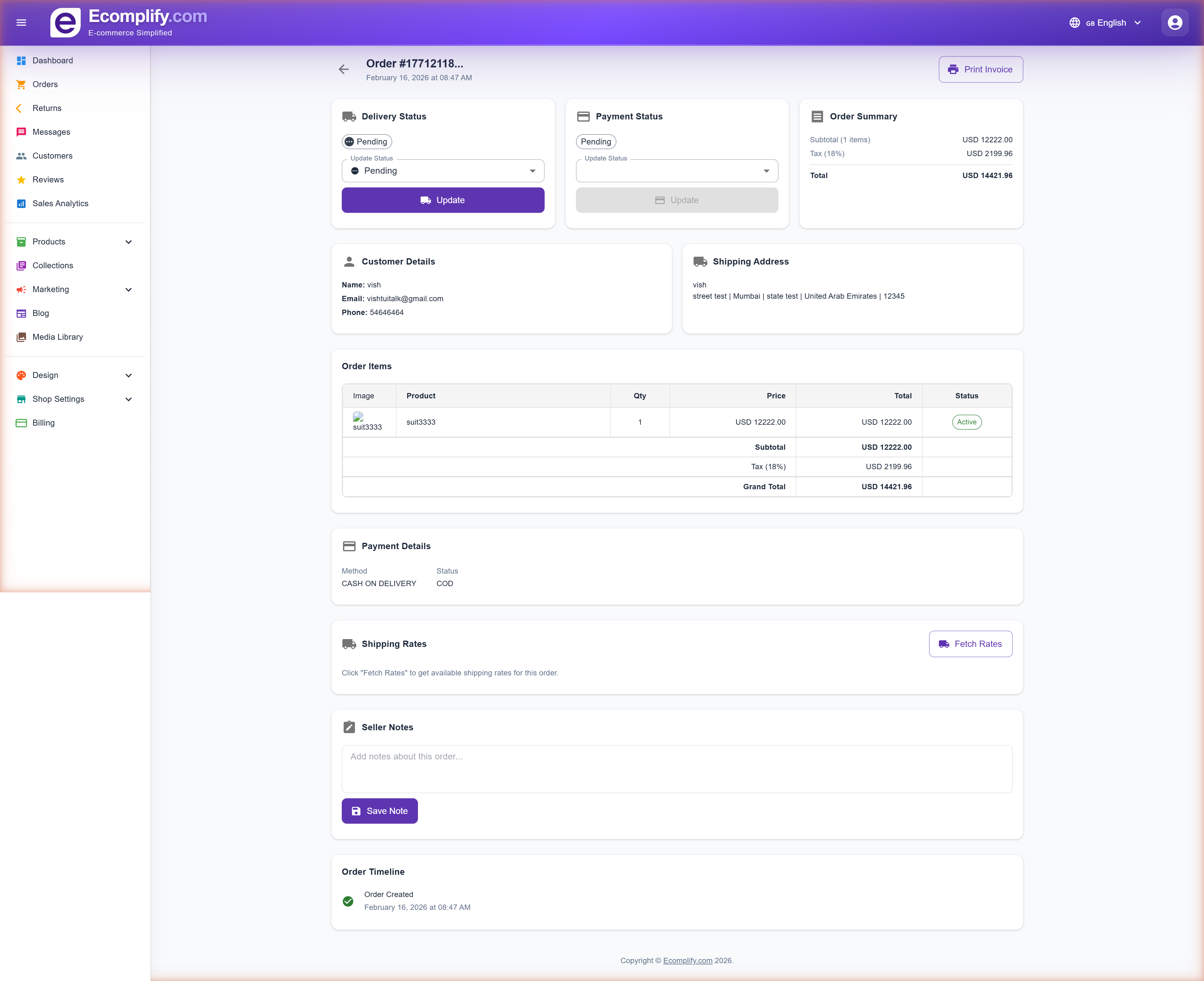
From the order detail page, you can update:
- Delivery Status - Change between Pending, Shipped, Out for Delivery, Delivered
- Payment Status - Update payment confirmation
Live carrier tracking
Once a shipment is booked, you don't need to update the delivery status by hand. The carrier reports each scan and the order updates itself — Shipped, Out for Delivery, and Delivered — and the customer's tracking page moves with it.
- Parcels the courier couldn't deliver and sent back to you (RTO) restock automatically when the carrier reports the return. Money is not touched — a prepaid RTO is refunded by you explicitly.
- Manual updates still work. Whichever happens first — your manual change or the carrier's scan — the customer is notified exactly once per step, never twice.
- Carriers that don't push updates are covered by the tracking refresh, which pulls the latest status from the carrier instead.
Order Information Sections
The order detail page includes:
- Status Cards - Quick view of delivery status, payment status, and order summary
- Customer Details - Name, email, and phone number
- Shipping Address - Full delivery address
- Order Items - Product details with image, quantity, price, and status
- Payment Details - Payment method and status
- Shipping Rates - Fetch available shipping rates for the order
- Seller Notes - Add internal notes about the order
- Order Timeline - Chronological history of order events
Actions Available
From the order detail page you can:
- Update delivery and payment status
- Print the invoice
- View order JSON data
- Add seller notes
- Fetch shipping rates
Invoice
Generate and print professional invoices for any order.
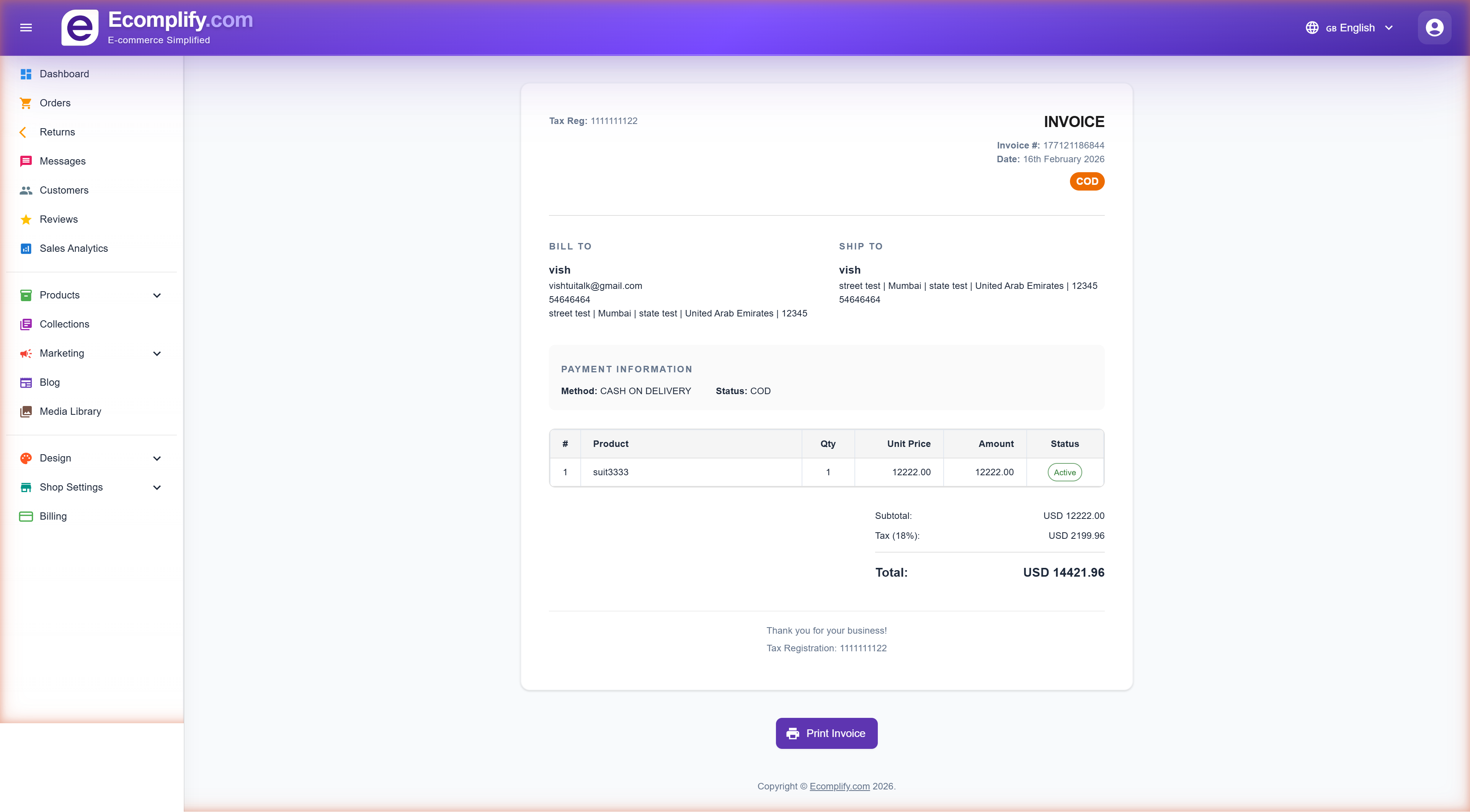
The invoice includes:
- Tax registration number
- Invoice number and date
- Payment method badge (COD, Stripe, etc.)
- Bill-to and Ship-to addresses
- Itemized product list with quantities and prices
- Subtotal, tax breakdown, and grand total
- Print Invoice button for physical copies
Shipping the order
Booking a courier, printing labels and manifests, tracking the parcel and handling failed deliveries all happen in the Shipping & Fulfillment card on the order page.
This has its own guide: Shipping an Order.
Cancellations
Customers cancel from their own order page, while the order hasn't shipped yet. They can cancel the whole order or just some of the items — the remaining items stay live and ship as normal. There is no cancel button in the dashboard.
Two things block a cancellation:
- The order is already delivered — the customer must use the returns flow instead.
- A shipment is already booked. Cancel the shipment with the carrier first, then the order can be cancelled.
When items are cancelled, stock is restored automatically for each of them. Cancelled lines appear struck through in the items table with a Restocked or Not restocked chip, so you can spot anything that failed to go back.
Refunds on cancellation
What happens to the money depends on the Cancellation refund mode setting in Shipping → Returns & Refund Policy:
- Auto (the default) — a paid online order is refunded immediately, with no action from you. Cancelling the whole order refunds everything still captured; cancelling some items refunds just those items.
- Manual — the order is flagged and waits for you.
COD and unpaid orders have nothing to refund.
The customer's cancellation email always tells them the truth about the money — the amount and reference if it was refunded, that it's pending if you're in manual mode, or that it doesn't apply for COD.
Refunds are incremental
Cancellations can happen in stages, and refunds follow suit. Each refund covers exactly the items it was for, and those items are marked as settled. If the customer later cancels more items, a fresh refund is calculated for just the new ones — an item that has already been refunded is never counted twice.
While some of the money has gone back and the rest of the order still stands, the order shows Partially refunded. It only shows Refunded once everything that was captured has been returned.
When the refund button appears
The refund box in the Payment Status card appears exactly when there is money to return. The button and the refund engine use the same rule, so they can never disagree. All of these must be true:
- The order was paid online (Stripe or Razorpay). COD and unpaid orders show no button — there is nothing to reverse.
- Some of the captured amount hasn't been refunded yet.
- The whole order is cancelled, or individual cancelled items are still awaiting their refund.
The amount is pre-filled with the correct figure — for a partial cancellation, exactly the cancelled items that haven't been refunded yet. You can lower it, but never raise it above that figure, and never above what remains captured on the order.
After you refund, the box disappears — and comes back by itself if the customer cancels more items later, pre-filled for just the new ones.
The refund status chip
Once a refund exists, the Payment Status card shows where it stands:
| Chip | Meaning |
|---|---|
| Refunded | Everything captured has been returned |
| Partially refunded | Cancelled items were refunded — the rest of the order stands |
| Pending - action needed | Manual mode — it's waiting for you |
| Pending (gateway) | The provider is still processing |
| Failed | The gateway refused it |
Whenever the order is still refundable, the amount box and Refund button sit right under the chip — including after a failure, so you can retry. It uses exactly the same engine as the automatic path, so there's only ever one way money moves.
Refunds are protected against mistakes: double-clicks are rejected, and you can never refund more than was actually captured on the order. Older Stripe orders that are missing their payment reference are looked up with Stripe automatically, so the refund still goes through.
SMS & WhatsApp order updates
Customers always get order emails. On top of that, you can send order updates by SMS or WhatsApp — which also reaches customers who sign in by phone and have no email address at all.
Set it up under Settings → Order Updates.
How it works
- Off by default. Nothing is sent until you switch it on and connect a provider.
- One message per update — WhatsApp first, falling back to SMS only if WhatsApp fails. Never both.
- Per-event switches. Shipped, Out for delivery, and Delivered are on by default — the updates customers actually care about. Order placed, Payment received, Confirmed, Processing, Ready to ship, Cancelled, and Refund processed are off until you enable them.
- Order placed is sent for cash-on-delivery orders only. Prepaid orders are confirmed by Payment received once the gateway settles — so the customer gets one message, not two. This matches how the order emails already behave.
- Customers with no phone number on the order are skipped automatically.
- These switches control SMS and WhatsApp only — the matching email still goes out either way.
- Updates fire wherever the status changes: a manual change in the dashboard, a carrier scan, a payment confirmation, or the customer cancelling from their order page.
Providers
Messages are sent through your own account with one of:
| Provider | Channels |
|---|---|
| Twilio | SMS + WhatsApp |
| MSG91 | SMS + WhatsApp (India — SMS needs a DLT-registered template ID per event) |
| Meta WhatsApp Cloud API | WhatsApp only |
| AWS SNS | SMS only |
WhatsApp updates need a Meta-approved utility template per event; the settings page has a field for each template name.
This account is deliberately separate from the login-OTP provider in your OTP settings. A problem on one — a suspended sender, a rotated key, an exhausted balance — never affects the other, so an order-update outage can never stop customers logging in.
Use the test send on the settings page before going live: it sends a real message to a number you choose and shows the provider's actual error if something is misconfigured.
Credit notes
A credit note is the formal counter-document to an invoice. Your invoice never changes; each refund adds a credit note, and what you actually collected is the invoice minus its credit notes.
Credit notes are created automatically whenever a refund is processed — from a cancellation or a return — and only after the payment provider confirms it. A failed refund produces no credit note.
You'll find them as red rows at the bottom of the order items table, showing the credit note number as a link and the amount as a negative, followed by a Net (after credit notes) total.
Each one records who it was issued to, the invoice and order it relates to, the reason, the items, and a full breakdown of what was credited — items, coupon share, tax, shipping, restocking fee and return shipping.
Credit notes cannot be edited or deleted. That's the point of them. The only action is Print / Download PDF.
Numbering runs per shop by financial year, with no gaps — for example CN-2025-26-00007.
Returns
Customer return requests are handled on the Returns page, which has its own full guide covering return windows, exchanges, refund calculations and restocking: Returns & Exchanges.