Customer Management
Manage and view customer information from the Customer Directory.
Customer Directory
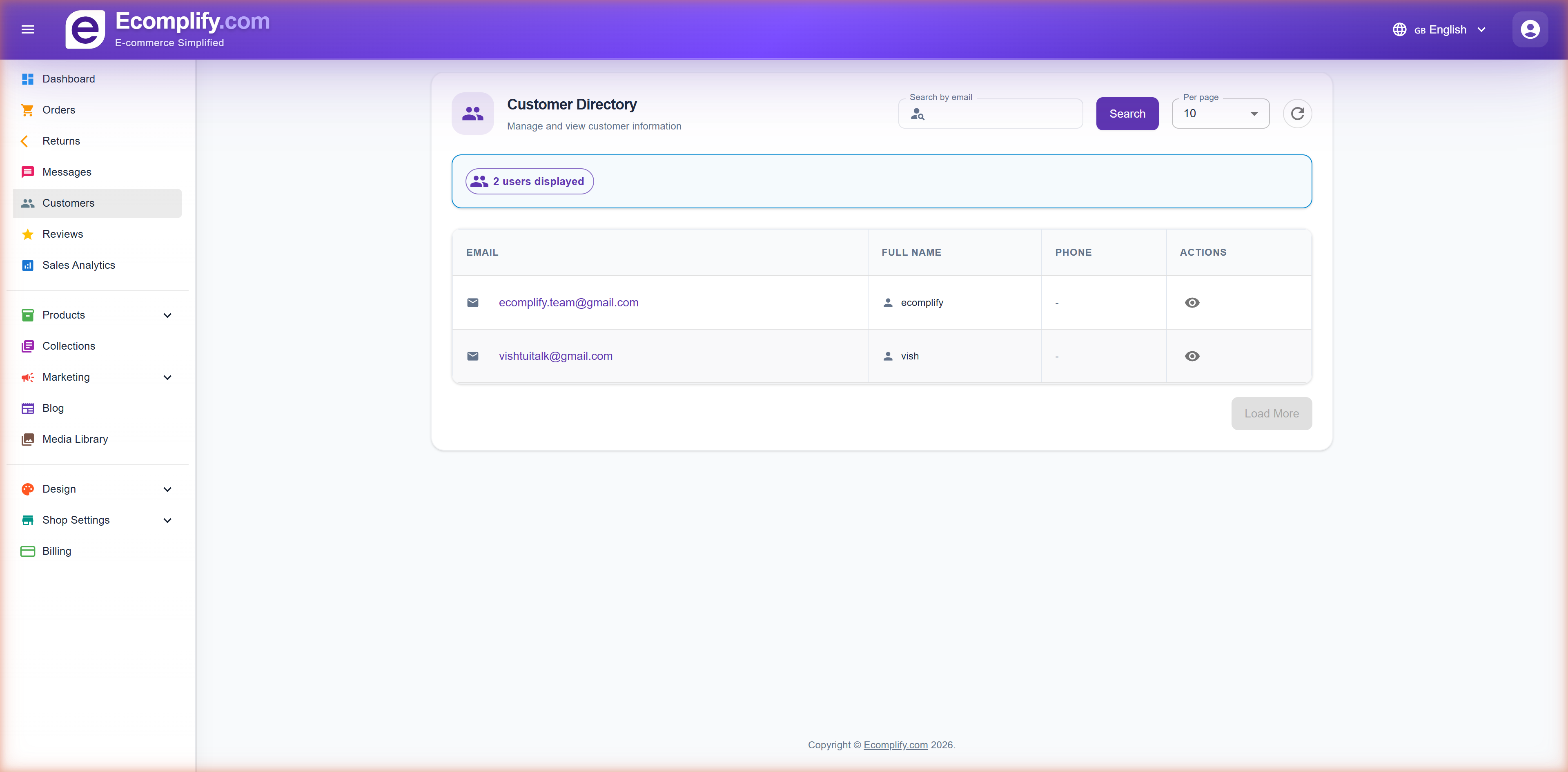
The Customer Directory provides a centralized view of all registered customers.
Customer Information
Each customer entry displays:
- Email - Customer's email address
- Full Name - Customer's display name
- Phone - Contact phone number
- Actions - View detailed customer profile
Search & Filtering
- Search customers by email address
- Set number of customers per page
- Refresh the customer list
Customer Details
Click the view button on any customer to see their full profile.
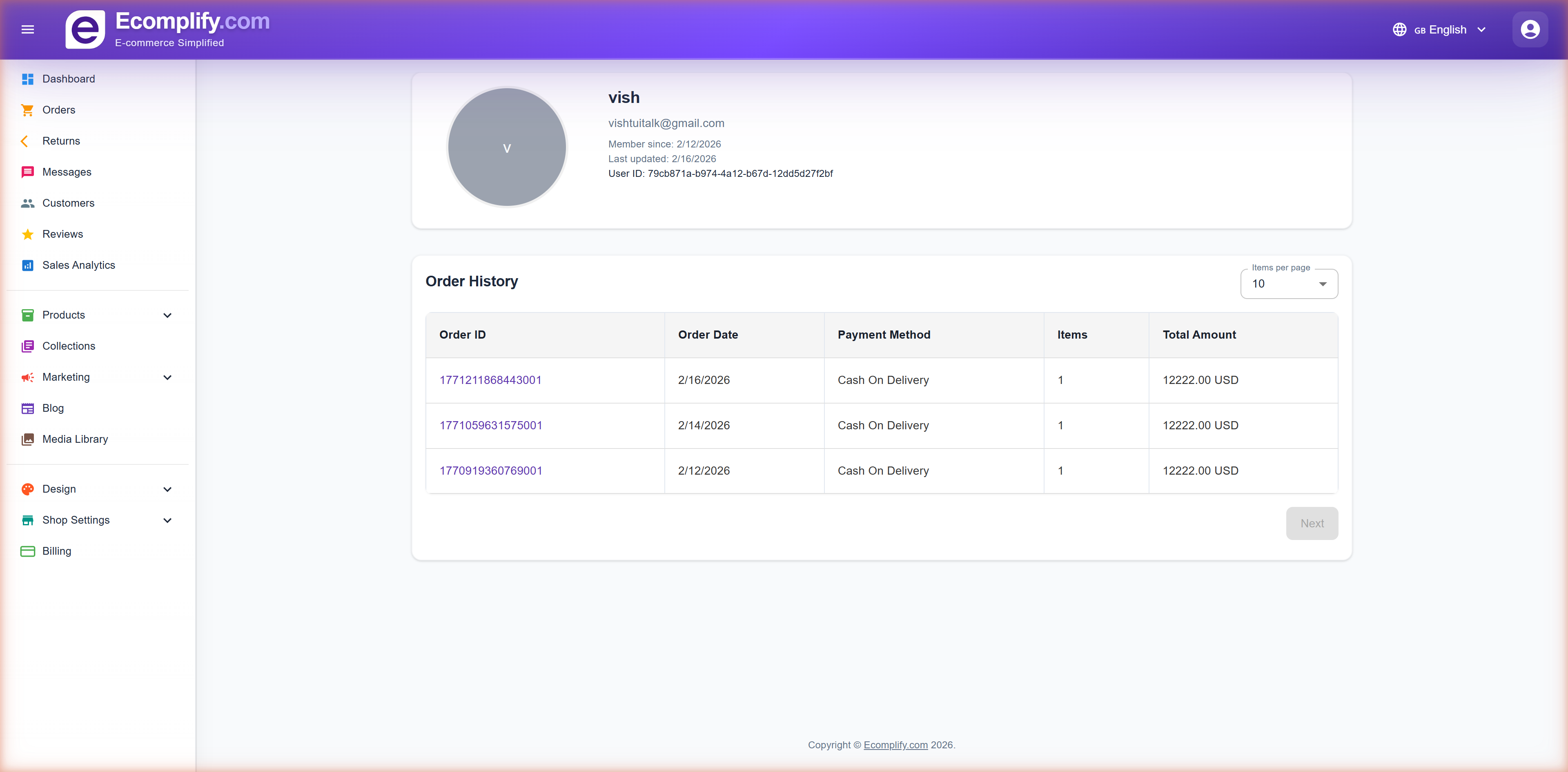
The customer detail page shows:
- Complete contact information
- Order history
- Account activity
- Address information
Messages
Manage customer inquiries and communications from the Messages page.
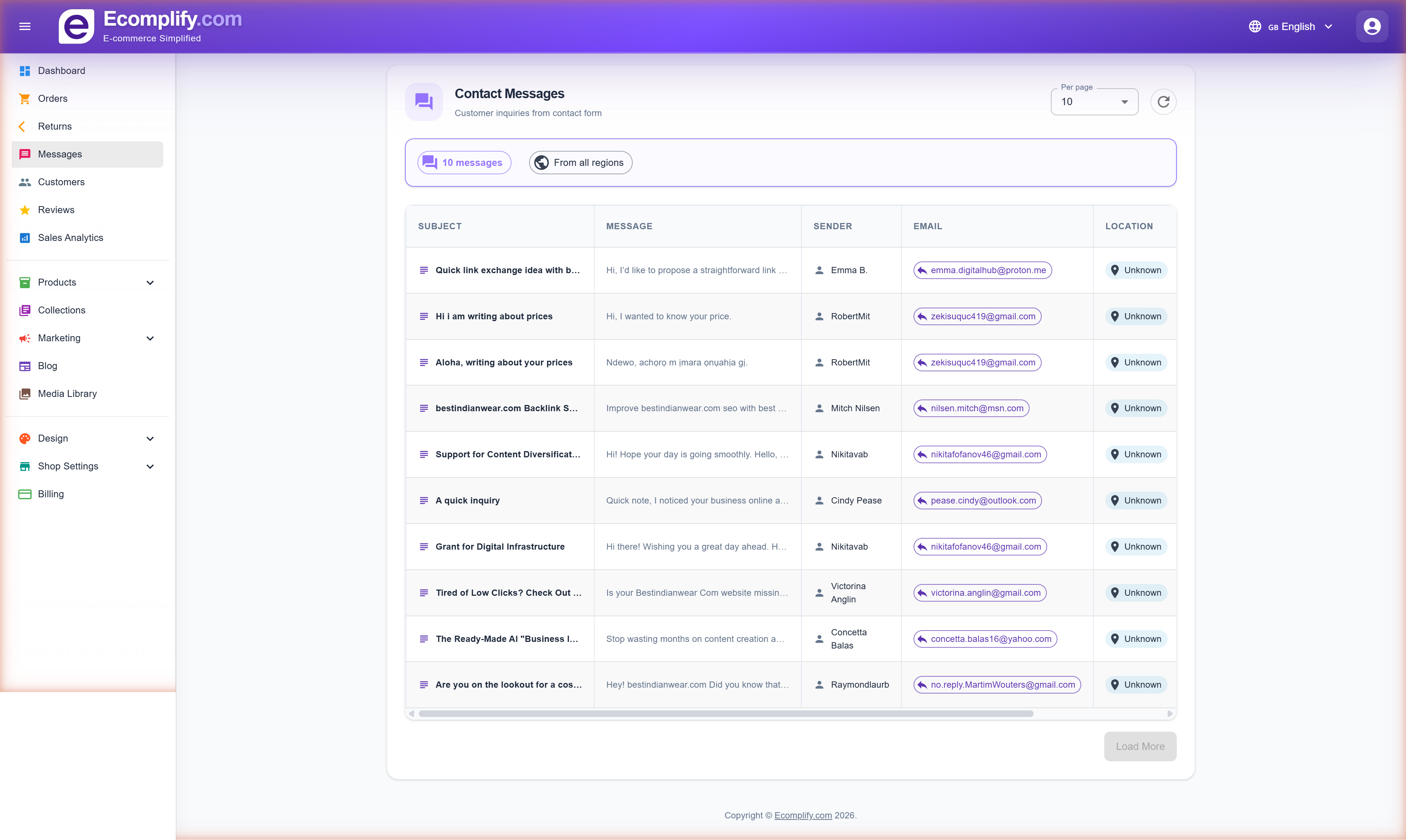
The messaging system allows you to:
- View all customer messages and inquiries
- Read and respond to customer communications
- Track message status (read/unread)
- Manage customer support conversations
Reviews Management
Moderate and manage product reviews from the Reviews page.
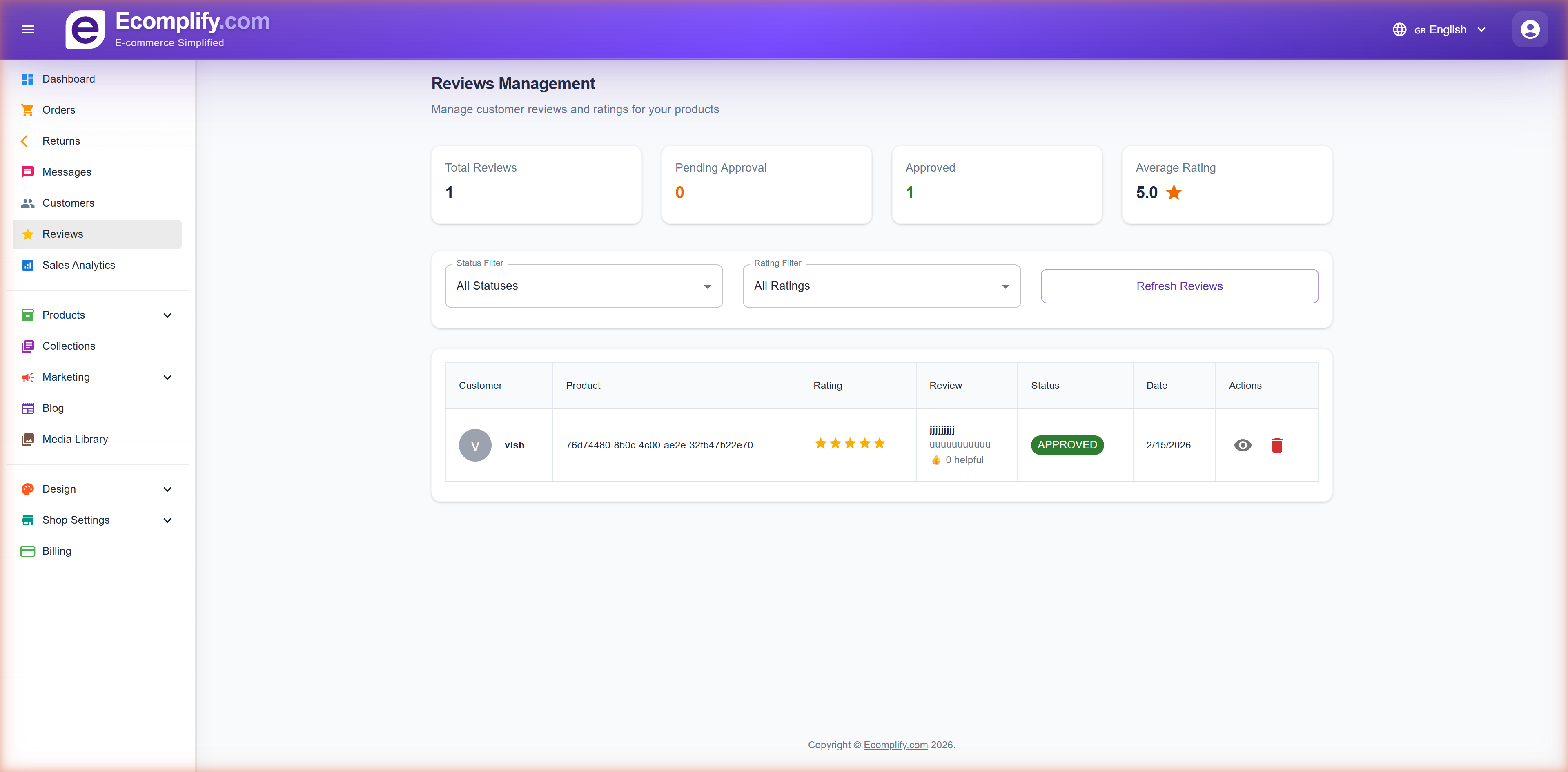
Review Dashboard
At the top, you can see key metrics:
- Total Reviews - Total number of submitted reviews
- Pending Approval - Reviews waiting for moderation
- Approved - Published reviews
- Average Rating - Overall star rating across all products
Filtering Reviews
- Filter by Status (All, Pending, Approved, Rejected)
- Filter by Rating (All, 1-5 stars)
- Refresh Reviews to reload the list
Review Details
Each review shows:
- Customer name and avatar
- Product identifier
- Star rating (1-5 stars)
- Review text content
- Status badge (Approved/Pending/Rejected)
- Date submitted
- Actions: View, Delete
Moderation
Review moderation lets you:
- Approve reviews to publish them on your storefront
- Reject inappropriate reviews
- Delete reviews permanently
- Reviews marked as "Approved" are visible to customers
Customer Segments
Find groups of customers with saved filters - the same idea as Shopify's customer segments. Open Customers → Segments.
Templates
Eight starter templates show live counts: New customers, First-time buyers, Repeat customers, VIP (spent 500+ or 5+ orders), At risk (ordered before, nothing in 90 days), Recent buyers, Phone-only customers and Tagged VIP. Click one to open it in the builder.
Building a segment
Combine conditions with all or any:
| Condition | Examples |
|---|---|
| Orders placed, Total spent, Average order value | Total spent ≥ 500 |
| Last order, First order, Customer since | Last order more than 90 days ago |
| Shipping country | is any of India, Germany |
| Purchased product | any of (pick products) |
| Sales channel | is any of Instagram, WhatsApp |
| Tags, Marked VIP, Has email, Has phone, Accepts marketing | Tags contain wholesale |
The live preview updates as you edit and shows sample customers. Save with a name and optional description. Each shop can keep up to 50 segments.
Using a segment
- View lists the members with orders, spend, last order and country, with search and Export CSV.
- Email this segment opens the campaign wizard with the segment selected. The audience is frozen when you send or schedule, so a scheduled campaign goes to the members as of that moment.
- Counts are evaluated live from your orders and customers. Very large shops may see an estimate note.